IDS - Zeek
Installation and configuration
Lab Topology
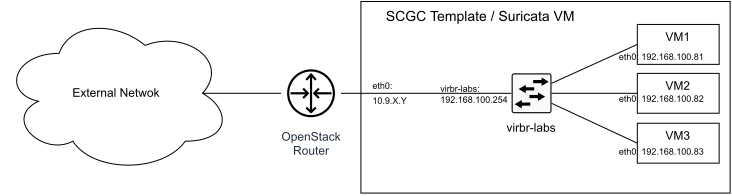

As presented in the scheme above, our architecture is the following:
- the base virtual machine with two interfaces:
eth0is connected to the OpenStack network (which is the External Network), whilevirbr-labsis the bridge that connects the virtual machines (which is our Internal Network); - three virtual machines that are connected to the
virbr-labsbridge interface: VM1 is a Debian webserver, VM2 and VM3 are Alma Linux systems;
Using virtual machines, the topology presented above simulates a small network.
The traffic we want to monitor is the one that flows through the virbr-labs
network adapter. Thus, we will install Zeek in the base virtual machine
and will configure it to inspect the traffic that flows through virbr-labs.
We will consider our internal network 192.168.100.0/24.
Install Zeek
Install Zeek on the virtual machine:
student@base-lab-ids:~$ echo 'deb http://download.opensuse.org/repositories/security:/zeek/Debian_12/ /' | sudo tee /etc/apt/sources.list.d/security:zeek.list
student@base-lab-ids:~$ curl -fsSL https://download.opensuse.org/repositories/security:zeek/Debian_12/Release.key | gpg --dearmor | sudo tee /etc/apt/trusted.gpg.d/security_zeek.gpg > /dev/null
student@base-lab-ids:~$ sudo apt update
student@base-lab-ids:~$ sudo apt install zeek-7.0
(If prompted about mail setting, you can just go with the defaults)
By default, all zeek-related files will be located under /opt/zeek/.
We will refer to /opt/zeek/ as the $PREFIX directory from now on.
We must have a monitoring interface attached to our virtual machine, where we
will receive all the traffic to be analyzed.
Edit the $PREFIX/etc/node.cfg file, add the monitoring interface:
[zeek]
type=standalone
host=localhost
interface=virbr-labs   # TODO: change this according to your listening interface in ifconfig
Another relevant field in the cfg file is the Site::local_nets, which will
save the address ranges considered local networks. We will leave it empty for now.
Zeek uses a control shell for easy use. We can start it with:
root@base-lab-ids:~# /opt/zeek/bin/zeekctl
Hint: Run the zeekctl "deploy" command to get started.

Welcome to ZeekControl 2.5.0-49

Type "help" for help.

[ZeekControl] >
Since it's the first time Zeek runs on our system, we must run the install
command first, then start:
[ZeekControl] > install
removing old policies in /opt/zeek/spool/installed-scripts-do-not-touch/site
...
removing old policies in /opt/zeek/spool/installed-scripts-do-not-touch/auto
...
creating policy directories ...
installing site policies ...
generating standalone-layout.zeek ...
generating local-networks.zeek ...
generating zeekctl-config.zeek ...
generating zeekctl-config.sh ...
[ZeekControl] > start
starting zeek ...
[ZeekControl] >
We can run stop to stop the instance, but we'll leave it running for now.
Zeek will run in the background and save different logs under $PREFIX/logs/current/.
There are several log files, all described here.
Some of the most relevant are:
- conn.log: will log all connections. There will be an entry for every TCP connection and for every UDP packet. It will retain all possible information, such as source/destination IP/port, packet size, etc. It can be used by OpenSearch to visualize all the connections.
- dns|http|ftp|smtp|ssh.log: will log information on packets using different protocols. Since we are working on encrypted traffic, a lot of these will not be helpful for us. Most packets will not even be identified (and logged) to the specific protocol.
- file.log: will log file transfers. Zeek can be configured to save the files on disk. Again, this is not useful for us, since the traffic is encrypted.
- ssl.log: will record information about the TLS traffic. TLS version, cipher, certificate chains, etc.
- weird.log: will record unexpected events at the protocol level. For example, unknown protocols, SYN after close, etc.
- notice.log: will log all the alerts that we choose. Some alerts are enabled
by default, like self-signed certificates, high traffic loss, etc. Most of the
alerts will be triggered by scripts. Specific logs saved in the notice.log can
be sent via email, by setting the notice type to
ACTION_EMAILorACTION_ALARM.
We can inspect the conn.log file and see some connections. A new line will
appear in the conn.log file for every TCP SYN+ACK and for every UDP connection.
root@base-lab-ids:~# cat /opt/zeek/logs/current/conn.log
#separator \x09
#set_separator  ,
#empty_field    (empty)
#unset_field    -
#path   conn
#open   2025-07-09-14-01-30
#fields ts      uid     id.orig_h       id.orig_p       id.resp_h
id.resp_p       proto   service duration        orig_bytes      resp_bytes
conn_state      local_orig      local_resp    missed_bytes    history orig_pkts
orig_ip_bytes   resp_pkts       resp_ip_bytes   tunnel_parents
#types  time    string  addr    port    addr    port    enum    string
interval        count   count   string  bool    bool    count   string  count
count   count   count   set[string]
1752084079.462123       COGlJK2xmkun4Bil72      192.168.56.104  5353
224.0.0.251     5353    udp     -       -       -       -       OTH     T
F       0       C       0       0    00       -
We can see some relevant information here, like the source/destination address and port, protocol, etc.
If you do not see any traffic, you can connect to one of the VMs using SSH and ping another one.
Zeeks Scripting Framework
Unlike other IDS like Suricata and Snort that work based on rules, Zeek ships with an event-driven scripting language, that can be used to generate alerts or custom logs. Using custom script, we can hook to certain network events (like a new connection, an SSH attempt, etc.) and perform custom analysis.
When Zeek starts, the first script loaded is the one in
$PREFIX/share/zeek/site/local.zeek. If we inspect it, we can see that all it
does is load other scripts. All the scripts are located under $PREFIX/share/zeek/.
Let's try to create a script that will send an alert message on every new connection.
This is obviously a bad idea, since it will generate a lot of unwanted alerts,
but it will be the starting point for more useful scripts.
We create a new file, $PREFIX/share/zeek/site/alert-all.zeek. First, we need
to load the notice framework, so we can use the NOTICE function to send alerts.
@load base/frameworks/notice
Next, we follow the instructions from the documentation.
We create a new Notice::Type and export it:
export {
  redef enum Notice::Type += { NewConn };
}
Now we can use this notice type to generate alerts and differentiate from
alerts coming from different modules. We will create a new event for every new
connection using the event new_connection hook,
and generate an alert every time. The new_connection event receives a connection
parameter, you can find details about the different types in the
Zeek docs.
We want to send an alert with the message New Connection Detected from IP:PORT to IP:PORT.
For this, we will need the ip and port of both connection ends, which we can
get using c$id$orig_h, c$id$orig_p, c$id$resp_h, c$id$resp_p (details
here).
Note that Zeek uses $ as the dereference operator.
event new_connection(c: connection)
{
		NOTICE([
		  $note=NewConn,
		  $msg=fmt("New Connection Detected, from %s %s to %s %s", c$id$orig_h, c$id$orig_p, c$id$resp_h, c$id$resp_p),
		  $id=c$id,
		  $uid=c$uid
		]);
}
The notice will require at least the note and msg parameters.
The final file will look like this:
root@base-lab-ids:/opt/zeek/share/zeek/site# cat alert-all.zeek
@load base/frameworks/notice

export {
  redef enum Notice::Type += { NewConn };
}

event new_connection(c: connection)
{
		NOTICE([
		  $note=NewConn,
		  $msg=fmt("New Connection Detected, from %s %s to %s %s", c$id$orig_h, c$id$orig_p, c$id$resp_h, c$id$resp_p),
		  $id=c$id,
		  $uid=c$uid
		]);
}
We need to load the script in the Zeek start configuration.
For that, just add this like in $PREFIX/share/zeek/site/local.zeek:
@load site/alert-all.zeek
Now, we can restart Zeek by running $PREFIX/bin/zeekctl deploy.
In order to test our script, let's ping the virtual machine from another
system. After that, we should see new entries in $PREFIX/logs/current/notice.log
student@lab-scgc$ ping <IP of VM>

root@base-lab-ids:/# cat /opt/zeek/logs/current/notice.log
#fields ts      uid     id.orig_h       id.orig_p       id.resp_h
id.resp_p       fuid    file_mime_type  file_desc       proto   note    msg
sub     src     dst     p       n    peer_descr       actions email_dest
suppress_for    remote_location.country_code    remote_location.region
remote_location.city    remote_location.latitude
remote_location.longitude
#types  time    string  addr    port    addr    port    string  string  string
enum    enum    string  string  addr    addr    port    count   string
set[enum]       set[string]     interval      string  string  string  double
double
1752562515.074621       CPjfm72rn5qbw0oy6b      192.168.56.1    35190
192.168.56.104  22      -       -       -       tcp     NewConn New Connection
Detected, from 192.168.56.1 35190/tcp to 192.168.56.104 22/tcp -
192.168.56.1    192.168.56.104  22      -       -       Notice::ACTION_LOG
(empty) 3600.000000     -       -       -       -       -
1752562527.539468       CBGHVr4VVYwqR6XbTj      192.168.56.1    49478
192.168.56.104  22      -       -       -       tcp     NewConn New Connection
Detected, from 192.168.56.1 49478/tcp to 192.168.56.104 22/tcp -
192.168.56.1    192.168.56.104  22      -       -       Notice::ACTION_LOG
(empty) 3600.000000     -       -       -       -       -
1752562540.934853       CmuXxa1eNCfU9LqMKa      192.168.56.1    8
192.168.56.104  0       -       -       -       icmp    NewConn New Connection
Detected, from 192.168.56.1 8/icmp to 192.168.56.104 0/icmp    -
192.168.56.1    192.168.56.104  0       -       -       Notice::ACTION_LOG
(empty) 3600.000000     -       -       -       -       -
We can see our icmp connection, along with other tcp/udp connections.
Check for Port Scanning
The last script does not help us very much, since the alerts will quickly turn into spam. Let's create a new script that will alert us if an address initiates more than 10 connections. Something like this can be used to detect port scans. Likely the threshold will different in a real network, but we will use 10 for ease of testing.
For this, we will create a hashmap-like structure, where map[IP address] = number of connections started by IP.
We will use the Zeek table type,
which functions exactly like a hashmap. We create a new script, port-scan.zeek:
@load base/frameworks/notice

export {
  redef enum Notice::Type += { PortScan };
  const conn_limit = 10 &redef;
  global attempts: table[addr] of count;
}
Just like before, we must define a new Notice::Type. We also define the
connection limit. The &redef attribute will let us redefine the connection
threshold in the local.zeek file if wanted. We also create the hashmap with
keys of addr type and values of count type (unsigned int).
Now, on every new connection, we must check if the source address is in the table. If it is not, we add it, if it is, we increase the count. If the count is greater than the threshold, we issue an alert.
event new_connection(c: connection)
{

  local src = c$id$orig_h;
  local target = c$id$resp_h;

  if (src !in attempts)
  {
          attempts[src] = 1;
  }
  else
  {
          ++ attempts[src];
  }

  if (attempts[src] >= conn_limit)
  {
    attempts[src] = 0;
    NOTICE([
      $note=PortScan,
      $msg=fmt("Port Scan Detected, from %s to %s", c$id$orig_h, c$id$resp_h),
      $id=c$id,
      $uid=c$uid
    ]);
  }
}
We load it in the local.zeek main script, like we did before (we can remove the
old alert-all script from there, so we get rid of the spam notices).
In order to test it, we can do a port sweep from the host VM to the monitoring VM:
student@lab-ids-1:~$ nc -z <IP of VM2> 1-20
Now, we should see some alerts:
root@base-lab-ids:/opt/zeek# cat logs/current/notice.log
1753179245.707612       C99E6v2wxjgzxe3Wp4      192.168.56.1    45630   192.168.56.104  8       -       -       -       tcp     PortScan        Port Scan Detected, from 192.168.56.1 to 192.1
68.56.104       -       192.168.56.1    192.168.56.104  8       -       -       Notice::ACTION_LOG      (empty) 3600.000000     -       -       -       -       -
1753179245.707698       CgZhtw2PkCeVFaxof2      192.168.56.1    54594   192.168.56.104  9       -       -       -       tcp     PortScan        Port Scan Detected, from 192.168.56.1 to 192.1
68.56.104       -       192.168.56.1    192.168.56.104  9       -       -       Notice::ACTION_LOG      (empty) 3600.000000     -       -       -       -       -
1753179245.707762       CiSKeC1kOhMXFO1y4       192.168.56.1    38144   192.168.56.104  10      -       -       -       tcp     PortScan        Port Scan Detected, from 192.168.56.1 to 192.1
68.56.104       -       192.168.56.1    192.168.56.104  10      -       -       Notice::ACTION_LOG      (empty) 3600.000000     -       -       -       -       -
1753179245.707823       CWzofG4dtqJwDrHzbk      192.168.56.1    47112   192.168.56.104  11      -       -       -       tcp     PortScan        Port Scan Detected, from 192.168.56.1 to 192.1
68.56.104       -       192.168.56.1    192.168.56.104  11      -       -       Notice::ACTION_LOG      (empty) 3600.000000     -       -       -       -       -
As you can see, the alerts are still noisy. We receive alerts for every 10 connections, and the conunter increases even if the connections are done to the same port. You can test that by running from a VM:
$ for i in $(seq 1 30); do nc -z 192.168.100.82 1; done
You will still see alerts, even if you just connected to one port. Fix that by creating a mapping between the source address and the scanned port. You can use a set of ports that you keep in a table, similar to the connection count table that already exists, or you can use other data types.
Try do redefine the connection threshold in the local.zeek file, without changing
the initial port-scan.zeek file. You can see how to use redef in the docs.
Intel Framework
Zeek can also work as a rule-based IDS, meaning that you can provide a list of known
malicious signatures (like IP address, domain, file hash, etc.) and it will send
alerts if any of them are seen in traffic. Signatures are stored in files, with
a specific format. You can find a list of files already formatted here.
Let's use a list of IP addresses. Download this file
and place it somewhere on the ids VM. We will create a new script (intel.zeek) where
we will load the file locations and start the intel framework.
@load frameworks/intel/seen
@load base/utils/site

redef Intel::read_files += { "PATH_TO_DOWNLOADED_FILE" };

event new_connection(c: connection)
{
        Intel::seen([$host=c$id$orig_h, $conn=c, $where=Conn::IN_ORIG]);
        Intel::seen([$host=c$id$resp_h, $conn=c, $where=Conn::IN_RESP]);
}
This way, we tell the Intel framework where to find the intel files, and we specify
that, on every new connection, we should check for both the source and destination
addresses in the known signatures. Load the new intel.zeek script into local.zeek,
and then try to ping one of the addresses in the list. A new log file should appear,
named intel.log:
root@base-lab-ids:~# cat /opt/zeek/logs/intel.log
#fields ts      uid     id.orig_h       id.orig_p       id.resp_h       id.resp_p       seen.indicator  seen.indicator_type     seen.where      seen.node       matched sources fuid    file_mime_type        file_desc
#types  time    string  addr    port    addr    port    string  enum    enum    string  set[enum]       set[string]     string  string  string
1753186849.671304       Cjt2Bb4if9usJtEkMa      192.168.56.1    55008   192.168.56.104  22      192.168.56.1    Intel::ADDR     Conn::IN_ORIG   zeek    Intel::ADDR     ABUSE-CH        -    --
1753186853.787336       CGWZHb2oMz8gCylTll      192.168.56.104  8       192.168.56.1    0       192.168.56.1    Intel::ADDR     Conn::IN_RESP   zeek    Intel::ADDR     ABUSE-CH        -    --
Try to do the same with another file from the list.
Porting Already Existing Scripts
Try to port some of the already publicly available scripts to Zeek.
- https://github.com/jonschipp/bro-scripts
- https://github.com/zeek/bro-scripts
- https://github.com/mitre-attack/bzar
- https://github.com/CriticalPathSecurity/zeek-scripts
Copy the scripts, add them in the local.zeek file, and try to trigger the alerting
by attacking the virtual machines.
Installation and configuration
Lab Topology
As presented in the scheme above, our architecture is the following:
- the base virtual machine with two interfaces:
eth0is connected to the OpenStack network (which is the External Network), whilevirbr-labsis the bridge that connects the virtual machines (which is our Internal Network); - three virtual machines that are connected to the
virbr-labsbridge interface: VM1 is a Debian webserver, VM2 and VM3 are Alma Linux systems;
Using virtual machines, the topology presented above simulates a small network.
The traffic we want to monitor is the one that flows through the virbr-labs
network adapter. Thus, we will install Zeek in the base virtual machine
and will configure it to inspect the traffic that flows through virbr-labs.
We will consider our internal network 192.168.100.0/24.
Install Zeek
Install Zeek on the virtual machine:
student@base-lab-ids:~$ echo 'deb http://download.opensuse.org/repositories/security:/zeek/Debian_12/ /' | sudo tee /etc/apt/sources.list.d/security:zeek.list
student@base-lab-ids:~$ curl -fsSL https://download.opensuse.org/repositories/security:zeek/Debian_12/Release.key | gpg --dearmor | sudo tee /etc/apt/trusted.gpg.d/security_zeek.gpg > /dev/null
student@base-lab-ids:~$ sudo apt update
student@base-lab-ids:~$ sudo apt install zeek-7.0
(If prompted about mail setting, you can just go with the defaults)
By default, all zeek-related files will be located under /opt/zeek/.
We will refer to /opt/zeek/ as the $PREFIX directory from now on.
We must have a monitoring interface attached to our virtual machine, where we
will receive all the traffic to be analyzed.
Edit the $PREFIX/etc/node.cfg file, add the monitoring interface:
[zeek]
type=standalone
host=localhost
interface=virbr-labs   # TODO: change this according to your listening interface in ifconfig
Another relevant field in the cfg file is the Site::local_nets, which will
save the address ranges considered local networks. We will leave it empty for now.
Zeek uses a control shell for easy use. We can start it with:
root@base-lab-ids:~# /opt/zeek/bin/zeekctl
Hint: Run the zeekctl "deploy" command to get started.

Welcome to ZeekControl 2.5.0-49

Type "help" for help.

[ZeekControl] >
Since it's the first time Zeek runs on our system, we must run the install
command first, then start:
[ZeekControl] > install
removing old policies in /opt/zeek/spool/installed-scripts-do-not-touch/site
...
removing old policies in /opt/zeek/spool/installed-scripts-do-not-touch/auto
...
creating policy directories ...
installing site policies ...
generating standalone-layout.zeek ...
generating local-networks.zeek ...
generating zeekctl-config.zeek ...
generating zeekctl-config.sh ...
[ZeekControl] > start
starting zeek ...
[ZeekControl] >
We can run stop to stop the instance, but we'll leave it running for now.
Zeek will run in the background and save different logs under $PREFIX/logs/current/.
There are several log files, all described here.
Some of the most relevant are:
- conn.log: will log all connections. There will be an entry for every TCP connection and for every UDP packet. It will retain all possible information, such as source/destination IP/port, packet size, etc. It can be used by OpenSearch to visualize all the connections.
- dns|http|ftp|smtp|ssh.log: will log information on packets using different protocols. Since we are working on encrypted traffic, a lot of these will not be helpful for us. Most packets will not even be identified (and logged) to the specific protocol.
- file.log: will log file transfers. Zeek can be configured to save the files on disk. Again, this is not useful for us, since the traffic is encrypted.
- ssl.log: will record information about the TLS traffic. TLS version, cipher, certificate chains, etc.
- weird.log: will record unexpected events at the protocol level. For example, unknown protocols, SYN after close, etc.
- notice.log: will log all the alerts that we choose. Some alerts are enabled
by default, like self-signed certificates, high traffic loss, etc. Most of the
alerts will be triggered by scripts. Specific logs saved in the notice.log can
be sent via email, by setting the notice type to
ACTION_EMAILorACTION_ALARM.
We can inspect the conn.log file and see some connections. A new line will
appear in the conn.log file for every TCP SYN+ACK and for every UDP connection.
root@base-lab-ids:~# cat /opt/zeek/logs/current/conn.log
#separator \x09
#set_separator  ,
#empty_field    (empty)
#unset_field    -
#path   conn
#open   2025-07-09-14-01-30
#fields ts      uid     id.orig_h       id.orig_p       id.resp_h
id.resp_p       proto   service duration        orig_bytes      resp_bytes
conn_state      local_orig      local_resp    missed_bytes    history orig_pkts
orig_ip_bytes   resp_pkts       resp_ip_bytes   tunnel_parents
#types  time    string  addr    port    addr    port    enum    string
interval        count   count   string  bool    bool    count   string  count
count   count   count   set[string]
1752084079.462123       COGlJK2xmkun4Bil72      192.168.56.104  5353
224.0.0.251     5353    udp     -       -       -       -       OTH     T
F       0       C       0       0    00       -
We can see some relevant information here, like the source/destination address and port, protocol, etc.
If you do not see any traffic, you can connect to one of the VMs using SSH and ping another one.
Zeeks Scripting Framework
Unlike other IDS like Suricata and Snort that work based on rules, Zeek ships with an event-driven scripting language, that can be used to generate alerts or custom logs. Using custom script, we can hook to certain network events (like a new connection, an SSH attempt, etc.) and perform custom analysis.
When Zeek starts, the first script loaded is the one in
$PREFIX/share/zeek/site/local.zeek. If we inspect it, we can see that all it
does is load other scripts. All the scripts are located under $PREFIX/share/zeek/.
Let's try to create a script that will send an alert message on every new connection.
This is obviously a bad idea, since it will generate a lot of unwanted alerts,
but it will be the starting point for more useful scripts.
We create a new file, $PREFIX/share/zeek/site/alert-all.zeek. First, we need
to load the notice framework, so we can use the NOTICE function to send alerts.
@load base/frameworks/notice
Next, we follow the instructions from the documentation.
We create a new Notice::Type and export it:
export {
  redef enum Notice::Type += { NewConn };
}
Now we can use this notice type to generate alerts and differentiate from
alerts coming from different modules. We will create a new event for every new
connection using the event new_connection hook,
and generate an alert every time. The new_connection event receives a connection
parameter, you can find details about the different types in the
Zeek docs.
We want to send an alert with the message New Connection Detected from IP:PORT to IP:PORT.
For this, we will need the ip and port of both connection ends, which we can
get using c$id$orig_h, c$id$orig_p, c$id$resp_h, c$id$resp_p (details
here).
Note that Zeek uses $ as the dereference operator.
event new_connection(c: connection)
{
		NOTICE([
		  $note=NewConn,
		  $msg=fmt("New Connection Detected, from %s %s to %s %s", c$id$orig_h, c$id$orig_p, c$id$resp_h, c$id$resp_p),
		  $id=c$id,
		  $uid=c$uid
		]);
}
The notice will require at least the note and msg parameters.
The final file will look like this:
root@base-lab-ids:/opt/zeek/share/zeek/site# cat alert-all.zeek
@load base/frameworks/notice

export {
  redef enum Notice::Type += { NewConn };
}

event new_connection(c: connection)
{
		NOTICE([
		  $note=NewConn,
		  $msg=fmt("New Connection Detected, from %s %s to %s %s", c$id$orig_h, c$id$orig_p, c$id$resp_h, c$id$resp_p),
		  $id=c$id,
		  $uid=c$uid
		]);
}
We need to load the script in the Zeek start configuration.
For that, just add this like in $PREFIX/share/zeek/site/local.zeek:
@load site/alert-all.zeek
Now, we can restart Zeek by running $PREFIX/bin/zeekctl deploy.
In order to test our script, let's ping the virtual machine from another
system. After that, we should see new entries in $PREFIX/logs/current/notice.log
student@lab-scgc$ ping <IP of VM>

root@base-lab-ids:/# cat /opt/zeek/logs/current/notice.log
#fields ts      uid     id.orig_h       id.orig_p       id.resp_h
id.resp_p       fuid    file_mime_type  file_desc       proto   note    msg
sub     src     dst     p       n    peer_descr       actions email_dest
suppress_for    remote_location.country_code    remote_location.region
remote_location.city    remote_location.latitude
remote_location.longitude
#types  time    string  addr    port    addr    port    string  string  string
enum    enum    string  string  addr    addr    port    count   string
set[enum]       set[string]     interval      string  string  string  double
double
1752562515.074621       CPjfm72rn5qbw0oy6b      192.168.56.1    35190
192.168.56.104  22      -       -       -       tcp     NewConn New Connection
Detected, from 192.168.56.1 35190/tcp to 192.168.56.104 22/tcp -
192.168.56.1    192.168.56.104  22      -       -       Notice::ACTION_LOG
(empty) 3600.000000     -       -       -       -       -
1752562527.539468       CBGHVr4VVYwqR6XbTj      192.168.56.1    49478
192.168.56.104  22      -       -       -       tcp     NewConn New Connection
Detected, from 192.168.56.1 49478/tcp to 192.168.56.104 22/tcp -
192.168.56.1    192.168.56.104  22      -       -       Notice::ACTION_LOG
(empty) 3600.000000     -       -       -       -       -
1752562540.934853       CmuXxa1eNCfU9LqMKa      192.168.56.1    8
192.168.56.104  0       -       -       -       icmp    NewConn New Connection
Detected, from 192.168.56.1 8/icmp to 192.168.56.104 0/icmp    -
192.168.56.1    192.168.56.104  0       -       -       Notice::ACTION_LOG
(empty) 3600.000000     -       -       -       -       -
We can see our icmp connection, along with other tcp/udp connections.
Check for Port Scanning
The last script does not help us very much, since the alerts will quickly turn into spam. Let's create a new script that will alert us if an address initiates more than 10 connections. Something like this can be used to detect port scans. Likely the threshold will different in a real network, but we will use 10 for ease of testing.
For this, we will create a hashmap-like structure, where map[IP address] = number of connections started by IP.
We will use the Zeek table type,
which functions exactly like a hashmap. We create a new script, port-scan.zeek:
@load base/frameworks/notice

export {
  redef enum Notice::Type += { PortScan };
  const conn_limit = 10 &redef;
  global attempts: table[addr] of count;
}
Just like before, we must define a new Notice::Type. We also define the
connection limit. The &redef attribute will let us redefine the connection
threshold in the local.zeek file if wanted. We also create the hashmap with
keys of addr type and values of count type (unsigned int).
Now, on every new connection, we must check if the source address is in the table. If it is not, we add it, if it is, we increase the count. If the count is greater than the threshold, we issue an alert.
event new_connection(c: connection)
{

  local src = c$id$orig_h;
  local target = c$id$resp_h;

  if (src !in attempts)
  {
          attempts[src] = 1;
  }
  else
  {
          ++ attempts[src];
  }

  if (attempts[src] >= conn_limit)
  {
    attempts[src] = 0;
    NOTICE([
      $note=PortScan,
      $msg=fmt("Port Scan Detected, from %s to %s", c$id$orig_h, c$id$resp_h),
      $id=c$id,
      $uid=c$uid
    ]);
  }
}
We load it in the local.zeek main script, like we did before (we can remove the
old alert-all script from there, so we get rid of the spam notices).
In order to test it, we can do a port sweep from the host VM to the monitoring VM:
student@lab-ids-1:~$ nc -z <IP of VM2> 1-20
Now, we should see some alerts:
root@base-lab-ids:/opt/zeek# cat logs/current/notice.log
1753179245.707612       C99E6v2wxjgzxe3Wp4      192.168.56.1    45630   192.168.56.104  8       -       -       -       tcp     PortScan        Port Scan Detected, from 192.168.56.1 to 192.1
68.56.104       -       192.168.56.1    192.168.56.104  8       -       -       Notice::ACTION_LOG      (empty) 3600.000000     -       -       -       -       -
1753179245.707698       CgZhtw2PkCeVFaxof2      192.168.56.1    54594   192.168.56.104  9       -       -       -       tcp     PortScan        Port Scan Detected, from 192.168.56.1 to 192.1
68.56.104       -       192.168.56.1    192.168.56.104  9       -       -       Notice::ACTION_LOG      (empty) 3600.000000     -       -       -       -       -
1753179245.707762       CiSKeC1kOhMXFO1y4       192.168.56.1    38144   192.168.56.104  10      -       -       -       tcp     PortScan        Port Scan Detected, from 192.168.56.1 to 192.1
68.56.104       -       192.168.56.1    192.168.56.104  10      -       -       Notice::ACTION_LOG      (empty) 3600.000000     -       -       -       -       -
1753179245.707823       CWzofG4dtqJwDrHzbk      192.168.56.1    47112   192.168.56.104  11      -       -       -       tcp     PortScan        Port Scan Detected, from 192.168.56.1 to 192.1
68.56.104       -       192.168.56.1    192.168.56.104  11      -       -       Notice::ACTION_LOG      (empty) 3600.000000     -       -       -       -       -
As you can see, the alerts are still noisy. We receive alerts for every 10 connections, and the conunter increases even if the connections are done to the same port. You can test that by running from a VM:
$ for i in $(seq 1 30); do nc -z 192.168.100.82 1; done
You will still see alerts, even if you just connected to one port. Fix that by creating a mapping between the source address and the scanned port. You can use a set of ports that you keep in a table, similar to the connection count table that already exists, or you can use other data types.
Try do redefine the connection threshold in the local.zeek file, without changing
the initial port-scan.zeek file. You can see how to use redef in the docs.
Intel Framework
Zeek can also work as a rule-based IDS, meaning that you can provide a list of known
malicious signatures (like IP address, domain, file hash, etc.) and it will send
alerts if any of them are seen in traffic. Signatures are stored in files, with
a specific format. You can find a list of files already formatted here.
Let's use a list of IP addresses. Download this file
and place it somewhere on the ids VM. We will create a new script (intel.zeek) where
we will load the file locations and start the intel framework.
@load frameworks/intel/seen
@load base/utils/site

redef Intel::read_files += { "PATH_TO_DOWNLOADED_FILE" };

event new_connection(c: connection)
{
        Intel::seen([$host=c$id$orig_h, $conn=c, $where=Conn::IN_ORIG]);
        Intel::seen([$host=c$id$resp_h, $conn=c, $where=Conn::IN_RESP]);
}
This way, we tell the Intel framework where to find the intel files, and we specify
that, on every new connection, we should check for both the source and destination
addresses in the known signatures. Load the new intel.zeek script into local.zeek,
and then try to ping one of the addresses in the list. A new log file should appear,
named intel.log:
root@base-lab-ids:~# cat /opt/zeek/logs/intel.log
#fields ts      uid     id.orig_h       id.orig_p       id.resp_h       id.resp_p       seen.indicator  seen.indicator_type     seen.where      seen.node       matched sources fuid    file_mime_type        file_desc
#types  time    string  addr    port    addr    port    string  enum    enum    string  set[enum]       set[string]     string  string  string
1753186849.671304       Cjt2Bb4if9usJtEkMa      192.168.56.1    55008   192.168.56.104  22      192.168.56.1    Intel::ADDR     Conn::IN_ORIG   zeek    Intel::ADDR     ABUSE-CH        -    --
1753186853.787336       CGWZHb2oMz8gCylTll      192.168.56.104  8       192.168.56.1    0       192.168.56.1    Intel::ADDR     Conn::IN_RESP   zeek    Intel::ADDR     ABUSE-CH        -    --
Try to do the same with another file from the list.
Porting Already Existing Scripts
Try to port some of the already publicly available scripts to Zeek.
- https://github.com/jonschipp/bro-scripts
- https://github.com/zeek/bro-scripts
- https://github.com/mitre-attack/bzar
- https://github.com/CriticalPathSecurity/zeek-scripts
Copy the scripts, add them in the local.zeek file, and try to trigger the alerting
by attacking the virtual machines.