Kafka
Setup
We will be using a virtual machine in the faculty's cloud.
When creating a virtual machine in the Launch Instance window:
- Name your VM using the following convention:
cc_lab<no>_<username>, where<no>is the lab number and<username>is your institutional account. - Select Boot from image in Instance Boot Source section
- Select CC Template in Image Name section
- Select the g.medium flavor.
In the base virtual machine:
- Download the laboratory archive from here.
Use:
wget https://repository.grid.pub.ro/cs/cc/laboratoare/lab-kafka.zipto download the archive. - Extract the archive.
- Run the setup script
bash lab-kafka.sh.
$ # download the archive
$ wget https://repository.grid.pub.ro/cs/cc/laboratoare/lab-kafka.zip
$ unzip lab-kafka.zip
$ # run setup script; it may take a while
$ bash lab-kafka.sh
Before we start
What is Kafka?
Apache Kafka is an open-source distributed event streaming platform used to build real-time data pipelines and streaming applications. Originally developed at LinkedIn and later open-sourced through the Apache Software Foundation, Kafka is designed for high-throughput, low-latency handling of real-time data feeds.
The key features that Kafka provides are:
- High throughput: Kafka can handle millions of messages per second
- Scalability: Kafka clusters can scale horizontally by adding more brokers and partitions
- Durability: Data is persisted on disk and replicated across multiple brokers for fault tolerance
We will explain each keyword in the following chapters.
Why do we need Kafka?
Kafka is used entensively across industries and domains that require real-time data streaming, reliable data pipelines and scalable system architectures.
Here is a list of companies that use Kafka in their tech stack:
- Netflix
- monitors streaming quality and buffer times
- delivers recommendations based on recent watch history
- trigger adaptive bitrate switching based on network conditions
- Riot Games (League of Legends)
- track millions of in-game events per second
- analyze performance, gameplay balance and user engagement
- push live updates without interrupting gameplay
- Uber
- tracks driver location for live updates
- updates trip status (driver on the way, trip completed)
- ETA calculations, route updates and dynamic pricing (surge)
- Adobe
- part of the Pipeline solution in Adobe Experience Platform
- processes hundreds of billions of messages each day
- replicates messages across 15 different data centers in AWS, Azure, and on-prem
Example: Using Kafka for Device Monitoring
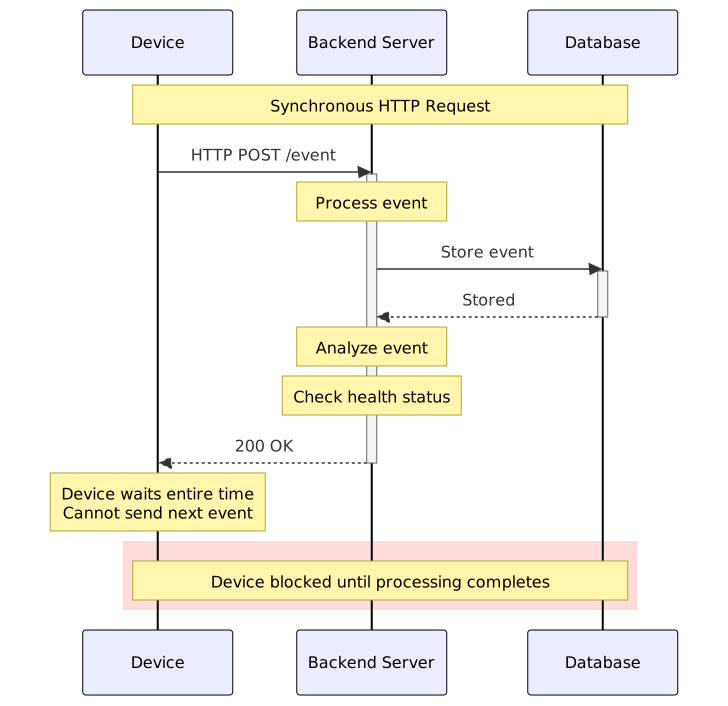
Consider a device monitoring solution similar in purpose to Prometheus that collects events such as CPU and RAM usage or file modifications. For large organizations, this can generate millions of events per day that require backend processing for security analysis, health monitoring, alerting, or other purposes.
Limitations of Synchronous Processing
A synchronous solution using HTTP calls has fundamental scalability constraints. The backend must process each event before accepting the next one, with parallelism limited by the number of available connections. This creates two problems:
- Event loss: If the backend cannot process events quickly enough, incoming events may be dropped or timeout
- Tight coupling: Monitored endpoints depend directly on backend availability and response time
How Kafka Addresses These Issues
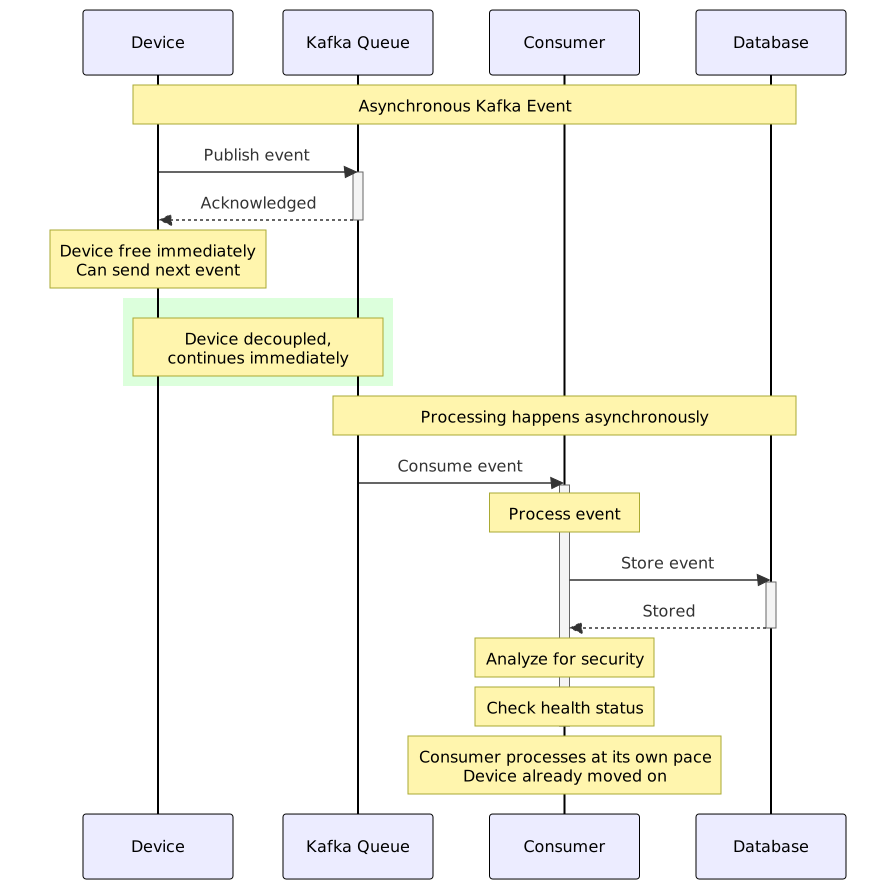
Kafka provides a message queue that enables asynchronous event processing:
- Decoupling: Endpoints publish events to Kafka and continue immediately, independent of backend processing speed or availability.
- Asynchronous consumption: The backend reads and processes events from the queue at its own pace, based on available resources.
- Buffering: Events are stored in the queue until processed, preventing loss during traffic spikes or temporary backend unavailability.
- Horizontal scalability: Multiple backend consumers can process events in parallel, and additional consumers can be added as load increases.
This architecture separates event production from consumption, allowing each component to scale independently and ensuring reliable event processing even under high load.
Asynchronous Requests: Trade-offs and Considerations
Asynchronous request processing offers significant advantages for system scalability and resilience. By decoupling the sender from the receiver, asynchronous systems allow components to operate independently—senders can continue their work without waiting for processing to complete, and receivers can process requests at their own pace based on available resources. This prevents cascading failures, as a slow or unavailable downstream service does not block upstream components. Additionally, asynchronous processing enables better resource utilization through load leveling, where spikes in traffic are absorbed by queues and processed during quieter periods. However, asynchronous architectures introduce complexity and trade-offs. The most significant is increased latency: the sender does not receive immediate confirmation that their request was successfully processed, only that it was queued. This complicates error handling—failures may occur long after the request was sent, requiring separate mechanisms for monitoring and retry logic. Ordering guarantees become harder to maintain, as requests may be processed out of sequence unless explicitly managed. Finally, asynchronous systems require additional infrastructure (message queues, worker pools) and operational complexity for monitoring queue depths, handling dead-letter queues, and ensuring messages are not lost or duplicated.
What tools we will use?
In this lab, we'll use two docker containers: the kafka broker and a third-party tool for UI visualization, called kafka-ui. For the coding (tutorial and exercises), we'll use Python3 with the confluent-kafka package.
kafka-ui is not an official tool, but a visualization tool designed and developed by the community, useful in the development process.
kafka-ui is a web application, already configured in your VM to run on localhost:8080.
There are two options for connecting to Kafka UI: SSH tunneling or Chrome Remote Desktop.
Option 1: SSH tunneling
Follow this tutorial to configure the SSH service to bind and forward the 8080 port to your machine:
ssh -J fep -L 8080:127.0.0.1:8080 -i ~/.ssh/id_fep student@10.9.X.Y
Option 2: Chrome Remote Desktop
An alternative to SSH tunneling or X11 forwarding is Chrome Remote Desktop, which allows you to connect to the graphical inteface of your VM.
If you want to use this method, follow the steps from here.
Set the connection
Go to localhost:8080 and configure as follows:
- Cluster name: CC_lab
- Host: kafka
- Post: 9092
At the bottom of the page click Validate. If everything goes well, we will see a toastr, Configuration is valid. We can click on Submit. After a couple of seconds, we will be able to see more options on the left panel:
- The Brokers page shows the list of kafka nodes available in the cluster.
- The Topics page presents all the topics.
- The Consumers page lists the consumer groups, with all the consumers in each group.
Useful scripts
Kafka provides a set of useful scripts for cluster management or just producing and consuming events.
For this part of the lab, we will need two shell instances. In both of them, run the following commands to enter the container and go to the scripts directory:
$ docker exec -it kafka bash
$ cd /opt/kafka/bin
Kafka topics
Kafka topics represent logical channels or categories to which records (messages) are published and from which records are consumed. We can view a topic as a directory from our filesystem. Each topic has a name, as each directory, and we can consume (read) from our topic by using its name, as listing the files from the directory.
Each topic is composed of one or more partitions, which are units of parallelism and storage within a topic. Imagine a Kafka topic as a highway where data (messages) flows like cars. The highway has three lanes, each lane represents a partition of the topic. Cars in a single lane (partition) follow a strict order, but multiple lanes allow more cars to travel at once.

Create a topic
Now that we have all the technical details, let's create our first topic.
$ ./kafka-topics.sh --bootstrap-server localhost:19092 --create --topic post.office
This script will connect to our Kafka node on port 19092 (used for external clients) and create a topic called post.office. Let's go back to kafka-ui on the Topics page and we will see a new topic post.office with 3 Partitions and 1 Replication Factor.
Delete a topic
We can delete topics using the same script.
If you run the below script, you will have to recreate the post.office.
$ ./kafka-topics.sh --bootstrap-server localhost:19092 --delete --topic post.office
Produce events on a topic
The following command will produce an event on the post.office topic.
$ echo '{"event": "new_envelope", "to": "Alan Turing", "message": "You are my role model"}' | ./kafka-console-producer.sh --bootstrap-server localhost:19092 --topic post.office
Let's take a look at the Topics page. We will see that the Number of messages field increased. Click on the topic name and a more detailed page will pop. We can see on the Messages tab our message, but the Consumers tab is empty.
Consume events from a topic
The following instruction will consume an event from the post.office topic.
$ ./kafka-console-consumer.sh --bootstrap-server localhost:19092 --topic post.office
As we can see, the script will lock our terminal waiting for events, but the first event is not received. Let's produce the same event again and see the result.
If we go on the Messages tab, we will see with a high chance that the second message is produced on other partition than the first one. That is a result of Kafka's internal routing system. Kafka will try to send messages on different partitions to increase the parallelism when we have multiple consumers.
Updating the number of partitions
As we were able to see in the above section, more partitions mean higher parallelism. We want to increase the number of partitions from 3 to 5 using the following script:
$ ./kafka-topics.sh --alter --topic post.office --partitions 5 --bootstrap-server localhost:9092
A real-world example would be an online shop. We use kafka to produce some events to another service that sends emails to customers. The entire year, three partitions work just fine, but the Black Friday comes. All the customers will start searching for products and purchasing all kinds of stuff. Three event consumers might not be enough and we don't want to miss or delay sending any purchasing email.
After increasing the number of partitions for a topic, a decrease is not allowed.
Try to decrease the number of partitions back to 3 and see what happens.
Exercises
From this point, we will use the python script provided in the ZIP archive.
To continue the lab, we need to create a virtual environment and install the confluent-kafka package. Run the following commands (directly on the VM, not in the kafka container):
$ python3.10 -m venv venv
$ source venv/bin/activate
$ pip3 install confluent-kafka
Make sure your prompt contains the (venv) message, as the following example:
(venv) student@cc-lab:~$
The confluent-kafka package is available only in the virtual environment, not on the machine.
For more in-depth details about confluent-kafka, check the official documentation.
Task 1
Here we have a Python script that creates multiple threads, one for each consumer/producer. We will always have one producer, which creates an event per second without any output, until the SIGINT (CTRL + C) signal is caught. We have a variable number of consumer threads, which will print everytime they consume something. Example of output:
$ python3 kafka.py
Consumer 0: {"to": "Steve Jobs", "from": "KFYbPZO@gmail.com", "message": "We will have affordable prices, right?"} (key: None)
SIGINT received. Stopping thread...
Follow TODO1 comments and let some events to be produced. What is the result in each consumer?
Details
Read me after
Each consumer will get all the events. Sometimes this is what we want, but sometimes this behaviour can lead to duplicating the actions. An example is the online shop that send events each time an user purchases something. One email service would want to subscribe to these events to send details to customers. Another service, that generates invoices for businesses, would also be a consumer. Both require the same events, not just a subset of them.What about a high traffic day that require two invoice services to generate the documentation in time? It would be a disaster to generate and send two invoices for one purchase, right?
Task 2
Follow TODO2 comments and let some events to be produced. What is the result in each consumer?
Details
Read me after
As we can see, grouping multiple consumers under the same ID means that we will not consume the same event twice.Kafka has an internal routing system based on partitions and the number of consumers in a consumer group. In this case, we can have maximum 5 active consumers because we have 5 partitions. The rest of the consumers will be on hold and will run only if active consumers stop for any reason.
Task 3
Follow TODO3 comments and let some events to be produced. What is the result in each consumer?
Details
Read me after
Up until this moment, we sent events that had a value, but without a key. When we send an event with a key, Kafka makes a hash of the key and assigns it to a partition. From that moment, all the events containing that key hash will be routed to the same partition.You can also check the kafka-ui dashboard.
We are creating a small amount of events compared to what Kafka can handle. There is a chance that some consumers will not get events.
Kafka does not guarantee that events with different keys will be sent on different partitions.
Kafka guarantees that events with the same key will also get on the same partition.
Task 4
The setup in bad-guys/ simulates a common production setup, with an API producing events for a consumer to process. For this exercise to
run, the initial Docker compose must also be up.
Architecture

| Container | Role | Port |
|---|---|---|
api | Flask REST API / Kafka producer | 5000 |
processor | Kafka consumer / result writer | N/A |
kafka | Kafka broker (external compose) | 9092 |
Both containers share a single SQLite database via a named Docker volume (db_data), mounted at /data/bad-guy.db. In
a production setup, this would be a Postgres, OpenSearch or other database accessed via the network.
Quick Start
# From inside the bad-guy/ folder
docker compose up --build
The kafka-init one-shot container will create the bad-guy-requests topic automatically.
API Reference
POST /bad-guys – Submit a new request
Request body
{
  "story": "In a galaxy far, far away…",
  "characters": ["Darth Vader", "Luke Skywalker", "Yoda"]
}
Response 202 Accepted
{
  "request_id": "550e8400-e29b-41d4-a716-446655440000",
  "status": "in_progress"
}
GET /bad-guys?request_id=<uuid> – Poll for results
Response 200 OK (while processing)
{
  "request_id": "550e8400-e29b-41d4-a716-446655440000",
  "story": "In a galaxy far, far away…",
  "characters": ["Darth Vader", "Luke Skywalker", "Yoda"],
  "status": "in_progress",
  "created_at": "2024-01-01 12:00:00",
  "updated_at": "2024-01-01 12:00:00"
}
Response 200 OK (when done)
{
  "request_id": "550e8400-e29b-41d4-a716-446655440000",
  "story": "In a galaxy far, far away…",
  "characters": ["Darth Vader", "Luke Skywalker", "Yoda"],
  "status": "done",
  "created_at": "2024-01-01 12:00:00",
  "updated_at": "2024-01-01 12:00:07",
  "bad_guys": {
    "Darth Vader":     "ULTIMATE_BAD_GUY",
    "Luke Skywalker":  "NOT_BAD_GUY",
    "Yoda":            "BAD_GUY"
  }
}
Subtasks
- Observe the async flow – Inspect the code; POST a request and immediately GET it; notice the
in_progressstatus. Poll every second until it flips todone. Check the Compose logs to see that requests are processed sequentially and independent of the initial HTTP request. - Scale consumers – Run multiple
processorinstances. Kafka's consumer group guarantees each message is processed once. To do this, scale up the number of replicas in the compose config of theprocessor. - Inspect Kafka – Exec into the
kafkacontainer and usekafka-console-consumerto see raw messages on thebad-guy-requeststopic. - Fault tolerance – Scale the processor back to 1 container. Kill the container mid-flight. Restart it. What happens to in-flight messages?